Hermes Desktop
Connect the standard Hermes Desktop app to an Actual computer to use its managed Hermes workspace, tools, and loaded model from another computer. The remote gateway keeps the agent and inference on the Actual computer; Desktop displays the conversation and controls.
Before you connect
- Install the standard Hermes Desktop release. An existing command-line Hermes installation can also open Desktop with
hermes desktop. - Install and sign in to Actual on the computer that will run your tasks, then load a model with tool support and at least a 64K context window.
- Keep that computer online and use an Actual account with access to its cluster. The managed gateway is supported on macOS and Linux hosts.
Desktop setup is available to every signed-in Actual account with a verified email address. If the setup page reports Hermes Desktop setup is not available for your account yet, verify the email address on your account and reload the page.
Prepare the gateway
- Open Chat and choose Connect Hermes Desktop, or open Desktop setup.
- Sign in to Actual if asked.
- Under Actual Node, choose the cluster that should run your tasks and click Prepare gateway.
- Wait for the gateway to report ready, then choose Copy gateway URL.
You can open the same setup page from a terminal:
actual hermes connect
To preselect a cluster, use its name or ID:
actual hermes connect --cluster "My computer"
Use actual hermes connect --no-open to print the setup page address without opening a browser. These commands open the setup flow; finish sign-in and choose Prepare gateway in the browser.
Setup saves the gateway setting on the selected Actual computer and starts it automatically. You do not need to edit its service environment or restart Actual. Keep the copied URL intact: it identifies the selected cluster.
Add it in Hermes Desktop
On first launch, choose Connect to existing Hermes. If you already use Desktop, open Settings > Gateways and add a remote gateway.
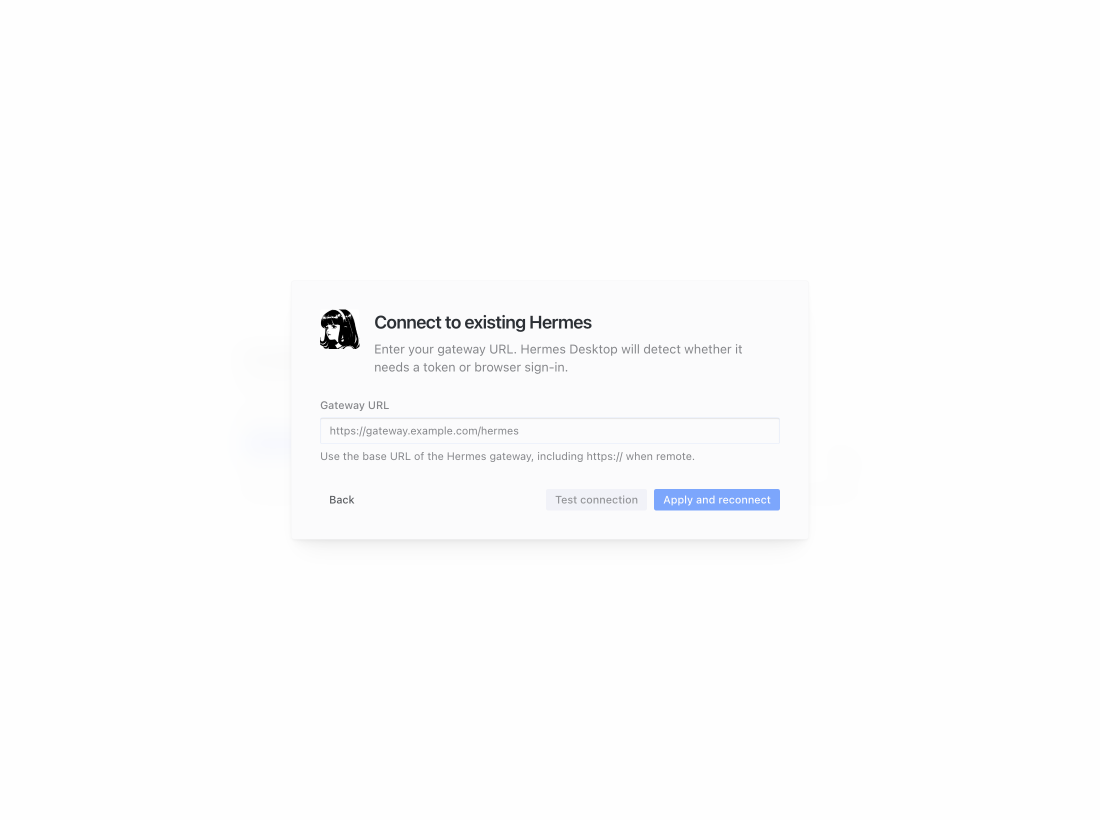
The connection window before a gateway URL is entered. Desktop detects browser sign-in after you paste the Actual gateway URL.
- Paste the URL copied from Actual into the remote gateway address field.
- Choose Sign in and complete the Actual browser sign-in. Use the account with access to the selected cluster.
- Return to Desktop after the sign-in window closes.
- Choose Test connection, then Apply and reconnect to save and use the gateway.
The address is a Desktop gateway, not the Actual inference API address. Use the copied gateway URL here, rather than https://api.actual.inc/v1. Browser sign-in authorizes the connection; you do not need to paste an inference key or retrieve a token from the Actual computer.
No custom Desktop build, plugin, or deep-link handler is required.
Use the remote workspace
Start a conversation and send a short message. Check the selected gateway and model before asking Hermes to edit files or run a command. File and terminal tools operate in the connected Actual computer's managed workspace, not the Desktop computer's local folders.
The cluster identifies the Hermes workspace you are connected to. The model picker selects the inference model that Hermes uses through Actual. Changing the model does not move the agent or its tools to another workspace; connect to that cluster's gateway to work there.
Hermes generates conversation titles as you chat. Select a conversation in the sidebar to return to it. For a long conversation, use /compact to summarize older context, then continue in the same conversation. Compaction preserves useful context in a summary; start a new conversation when you want a fresh context instead.
The gateway uses Actual's existing model runtime. Connecting Desktop does not download a second copy of the model or move model weights to the Desktop computer.
Return later
Select the saved gateway when you reopen Desktop. If no conversation is selected after restart, choose it from the sidebar. You do not need to prepare a new gateway for each conversation or restart.
If the Actual computer restarts or briefly disconnects, wait for it and its model to become ready, then reconnect using the saved gateway. If Desktop asks you to sign in again, complete the browser sign-in for that connection. A saved URL does not grant permanent access.
Turn the gateway off
On the Actual computer hosting the gateway, run:
actual settings set hermes.desktop_gateway_enabled off --scope saved
This disables remote Desktop access. To use it again, repeat Prepare gateway in Actual. The saved setting survives Actual restarts.
Troubleshooting
If the problem persists, collect Logs & Telemetry from the Actual computer. Include the time, selected cluster, and failed step; leave credentials and private conversation contents out of shared diagnostics.